How to create new pages in Sngine?
If you need to create a new page in Sngine and not just a simple static
Table des matières

If you need to create a new page in Sngine and not just a simple static page that you can create from admin panel you will need 3 things:
1- PHP file of the page (Control)
2- Template file of the page (View)
3- Edit the .htaccess file
1- Create the PHP File
You will add new PHP file in the Sngine root directory like this:
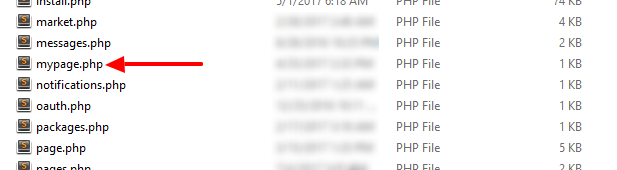
and name it as you want like mypage.php then you will open the new file with any code editor like Notepad++ and add the following code:
<?php

// fetch bootloader
require('bootloader.php');

// user access (this code will make the login required)
/* you can remove it if you want */
user_access();

// page header
page_header("My Page");

// page footer
page_footer("mypage");

?>
There are 2 points
- page_header() function accept 2 parameters the first one for the Title of the page in the address bar and the second one for the description of the page.
- page_footer() function accept 1 parameter and it’s for the name of the template file you will use for your page.
2- Create the Template File
Sngine use Smarty template engine so the view is seprated from the code and you can learn more from http://www.smarty.net/
Now you you will create a new template file in the your theme folder so if you’re using the “default theme” you will add the new template in the following folder “content\themes\default\templates“
Like this:
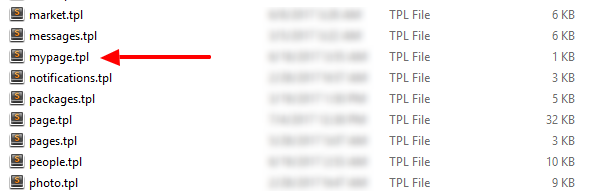
Note: the template name should be the same as you passed to the page_footer() function in the previous point and could be like this “mypage” “my_page”
Then you will add the following code
{include file='_head.tpl'}
{include file='_header.tpl'}

MY HTML IS HERE

{include file='_footer.tpl'}
And you can edit the HTML code as you want
3- Edit the htaccess
Now you can access your page directly from like that:
or you can add a new rule in the htaccess file so you can access the page like
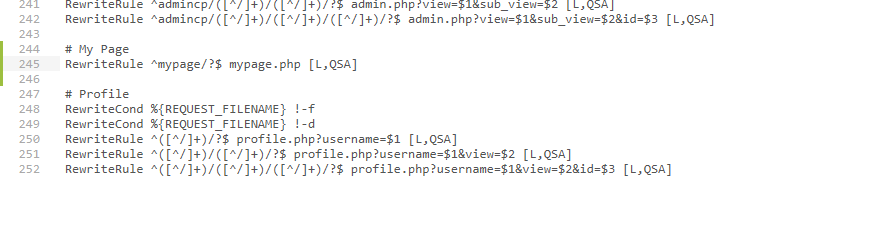
or whatever you want.
Note: You Rewrite Rules must be before the profile rules as you can see in the screenshots
That’s it.
Happy Sngine 🙂
Buy Sngine or Extend your support: https://bit.ly/BuySngine
Articles connexes
Premiers pas, Conseils et tutoriels
How Sngine Helps Combat Spam
 Zamblek
3 min de lecture
Zamblek
3 min de lecture
Premiers pas, Conseils et tutoriels
How To Set CORS Policy For Google Cloud Bucket?
Zamblek
1 min de lecture
Premiers pas, Conseils et tutoriels
New Google Playstore’s 12 Testers Policy for Production Release
Zamblek
1 min de lecture