How to Change Sngine v5 Theme Colors (Nova)
Replace Nova's indigo with your brand color in light and night mode, without losing your changes after updates.

Table of Contents
- Which method should you use?
- How Nova colors work
- Method 1: AdminCP color pickers (no code)
- Method 2: Change the brand color everywhere with Custom CSS (recommended)
- Step 1: Pick two shades of your brand color
- Step 2: Paste the snippet
- Optional: other theme colors
- Do not combine with "Button Primary" or "Link Color"
- Method 3: Rebuild the theme from the development files
- Step 1: Set up the build tools (once)
- Step 2: Change the colors at the source
- Step 3: Build and upload
- Optional: live preview while you edit
- After a Sngine update
- Method 4: A separate theme folder (not recommended for colors)
- Changing one specific place
- Recolor only one area
- Find what controls any element
- Keeping your colors after updates
- Troubleshooting
- FAQ
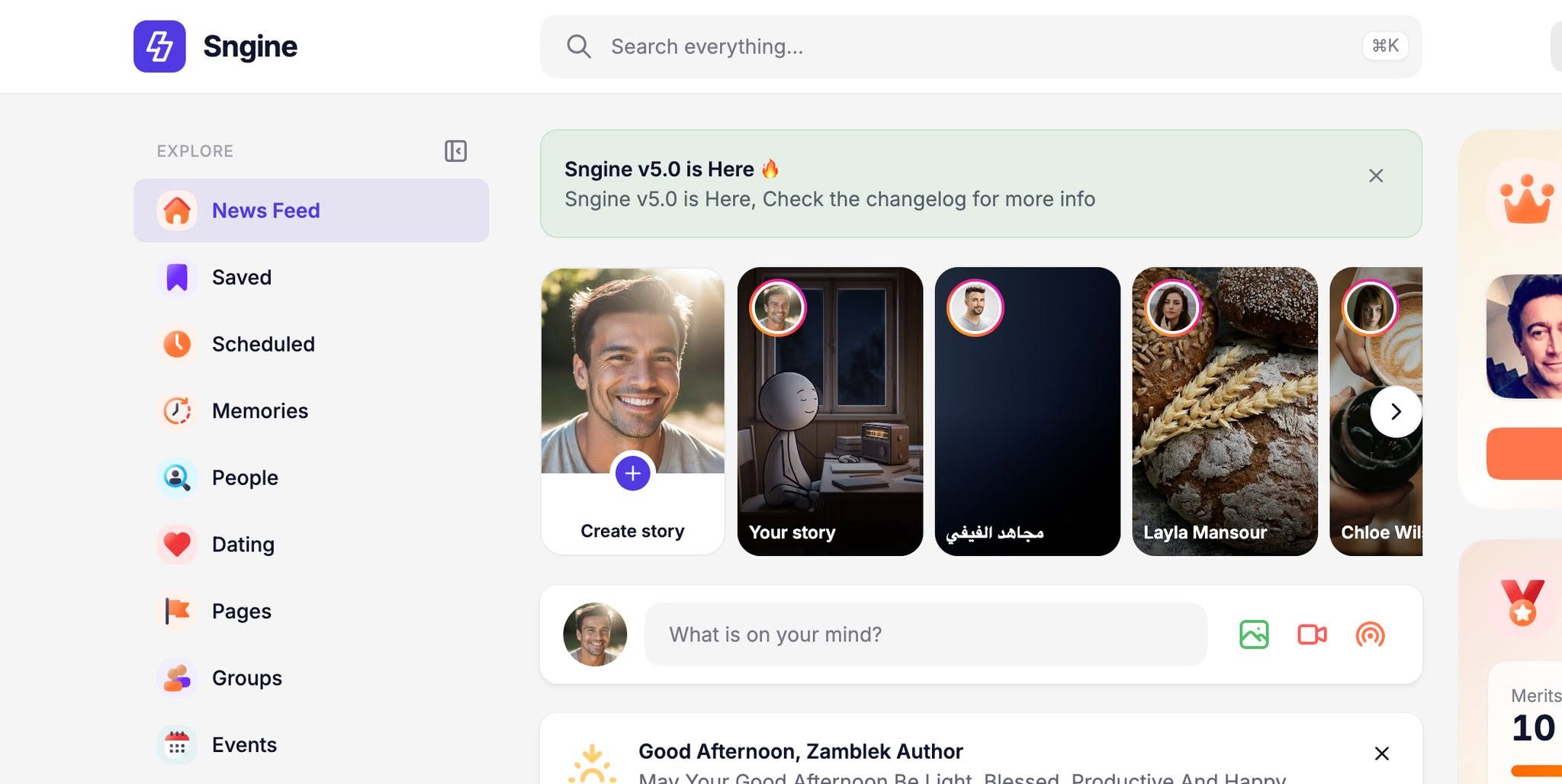
Sngine v5 comes with the new Nova theme, and its indigo brand color shows on buttons, links, switches, the story "+" button and the mobile bottom bar. This guide shows how to change the Sngine theme colors to your own brand color, in light and night mode, in a way that Sngine updates never overwrite.
The fastest way is a short CSS snippet pasted into AdminCP → Themes → Nova → Edit & Customize → Custom CSS (Method 2 below). It is saved in your database, so you never need to rebuild anything.
Sngine v5 replaced the old theme with Nova, built on Tailwind CSS v4, FlyonUI and HeroUI. The old guide edited style.css by hand. In v5 the theme CSS is compiled into content/themes/nova/dist/, so editing those files directly no longer works well: they are minified, have changing file names, and are replaced by every update.
Which method should you use?
Pick the method that fits what you want:
Method | Best for | Code? | Safe from updates? |
|---|---|---|---|
1. AdminCP color pickers | Changing a few colors (buttons, links, header, icons) | No | Yes |
2. Custom CSS with color variables (recommended) | Changing the brand color everywhere, light and dark mode | Copy and paste | Yes |
3. Rebuild from the development files | Changing the full color palette at the source | Yes, Node.js | No, re-apply after each update |
4. Your own theme folder | A fully separate design | Yes, advanced | Mostly, but no new template features |
Most customers only need Method 2.
How Nova colors work
Nova's indigo/purple brand color is #523ae2 in light mode and #7c69f2 in night mode. Older Sngine versions used #5e72e4; if a customer quotes that code, they mean this same brand color.
Every button, link, switch, badge, active tab, story "+" button and mobile bottom-bar button reads its color from a few CSS variables. Change the variables and every place that uses them changes at once, including hover and light "soft" shades, which are mixed automatically from the main color.
The brand color lives in two variables: --color-primary (FlyonUI parts) and --accent (HeroUI buttons). Change both. The full list:
Variable | Controls | Light mode | Night mode |
|---|---|---|---|
| Main site color: links, FlyonUI buttons, switches, checkboxes, badges, tabs, icons, story "+" button, bottom-bar create button |
|
|
| Text/icon color on top of the primary color |
|
|
| HeroUI buttons ("Post", "Save", "Follow", modal buttons) |
|
|
| Text on HeroUI buttons |
|
|
| Secondary color |
|
|
| Orange accent (for example the Story item in the Create menu) |
|
|
| Card, page and border backgrounds |
| dark greys |
| Main text color |
| near white |
The light theme is applied with data-theme="nova" on the <html> tag, night mode with data-theme="nova-dark". That is why the snippets in this guide set colors for both.
Method 1: AdminCP color pickers (no code)
Use this to change a few specific colors without writing code. The settings are saved per theme in your database, so updates keep them.
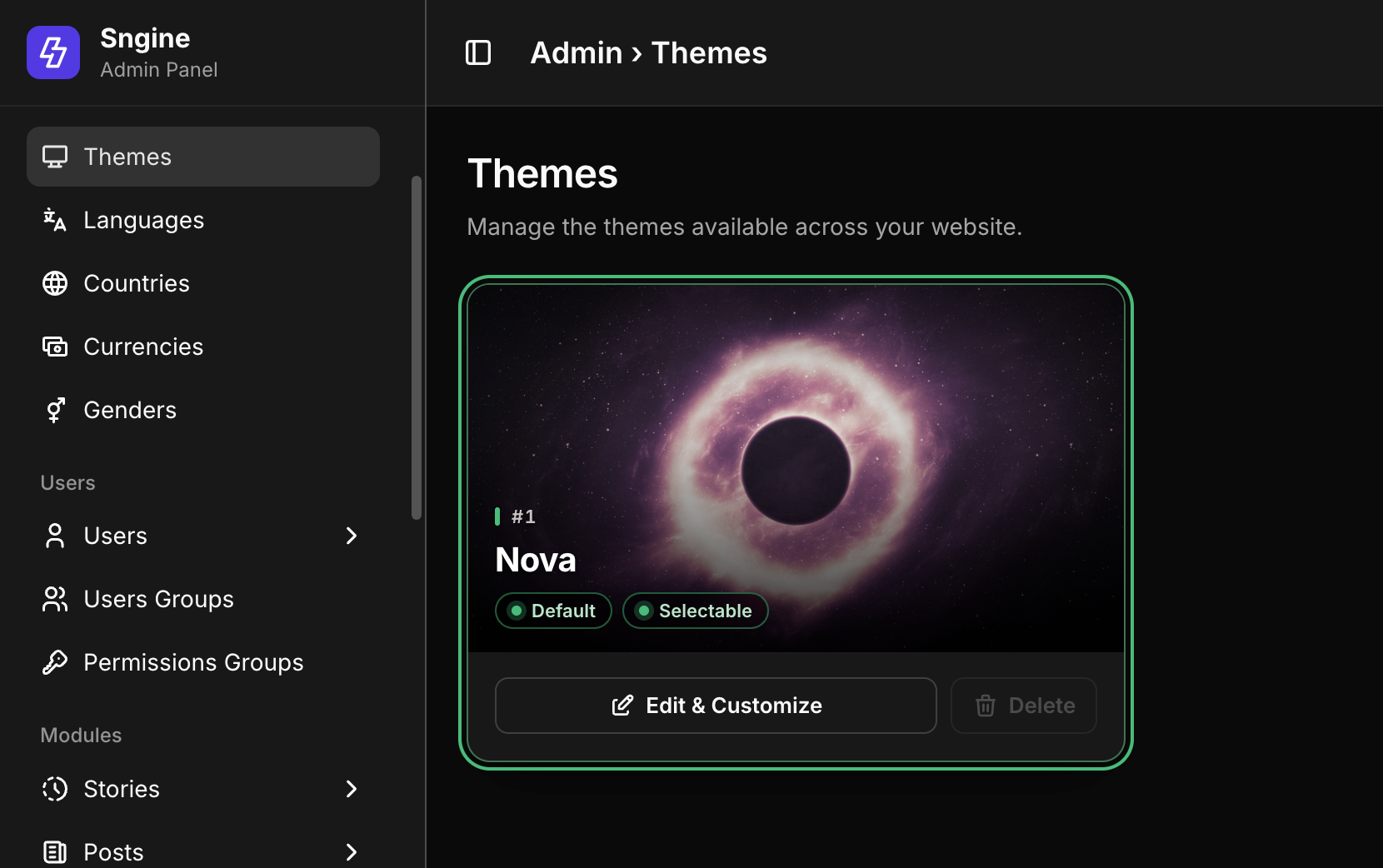
Go to AdminCP → Themes.
On the Nova card, click Edit & Customize.
Open the Customization tab.
Turn on Enable Customization. Nothing on this tab or on the Custom CSS tab is applied while this switch is off.
Pick your colors and click Save Changes.
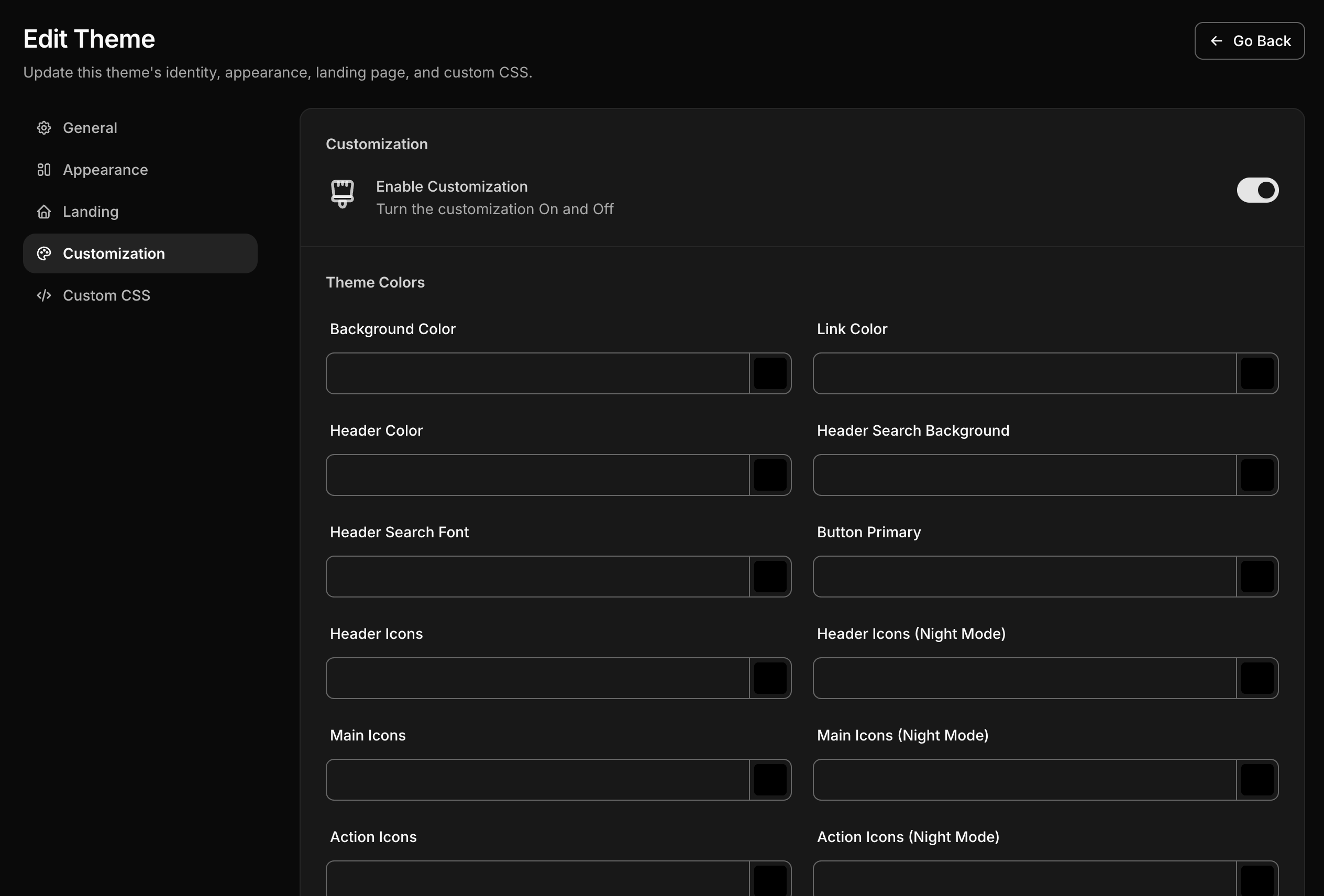
Field | What it changes |
|---|---|
Background Color | The page background |
Link Color | Links and text that uses the primary color |
Header Color | The top bar background |
Header Search Background | The search box in the top bar |
Header Search Font | The search box text and icon |
Button Primary | The background and border of primary buttons (FlyonUI and HeroUI) |
Header Icons / Header Icons (Night Mode) | Icons in the top bar |
Main Icons / Main Icons (Night Mode) | Colored icons in posts and settings pages |
Action Icons / Action Icons (Night Mode) | Icons on post actions and other neutral icons |
Limit of this method: these pickers paint fixed parts only. Switches, checkboxes, badges, active tabs, soft-tinted backgrounds, hover shades and the story "+" button still show the indigo color. To change the brand color everywhere, use Method 2. You can use both: keep the Header and Background pickers and add the Method 2 snippet for the brand color.
Method 2: Change the brand color everywhere with Custom CSS (recommended)
This replaces the indigo color across the whole site, in light and night mode, with one paste. It is saved in your database, so updates do not touch it, and no build tools are needed.
Step 1: Pick two shades of your brand color
Light mode color: your exact brand color, for example
#0e9f6e.Night mode color: a slightly lighter version of it, for example
#31c48d. Dark backgrounds make the original color look heavy; Nova does the same thing (#523ae2in light,#7c69f2in night).
If your brand color is very light (yellow, light green), set the content / foreground values below to a dark color such as #11142d so text on buttons stays readable.
Step 2: Paste the snippet
Go to AdminCP → Themes → Nova → Edit & Customize.
On the Customization tab, make sure Enable Customization is on.
Open the Custom CSS tab and paste the code below into Header Custom CSS.
Replace the four color codes with yours.
Click Save Changes, then refresh your site.
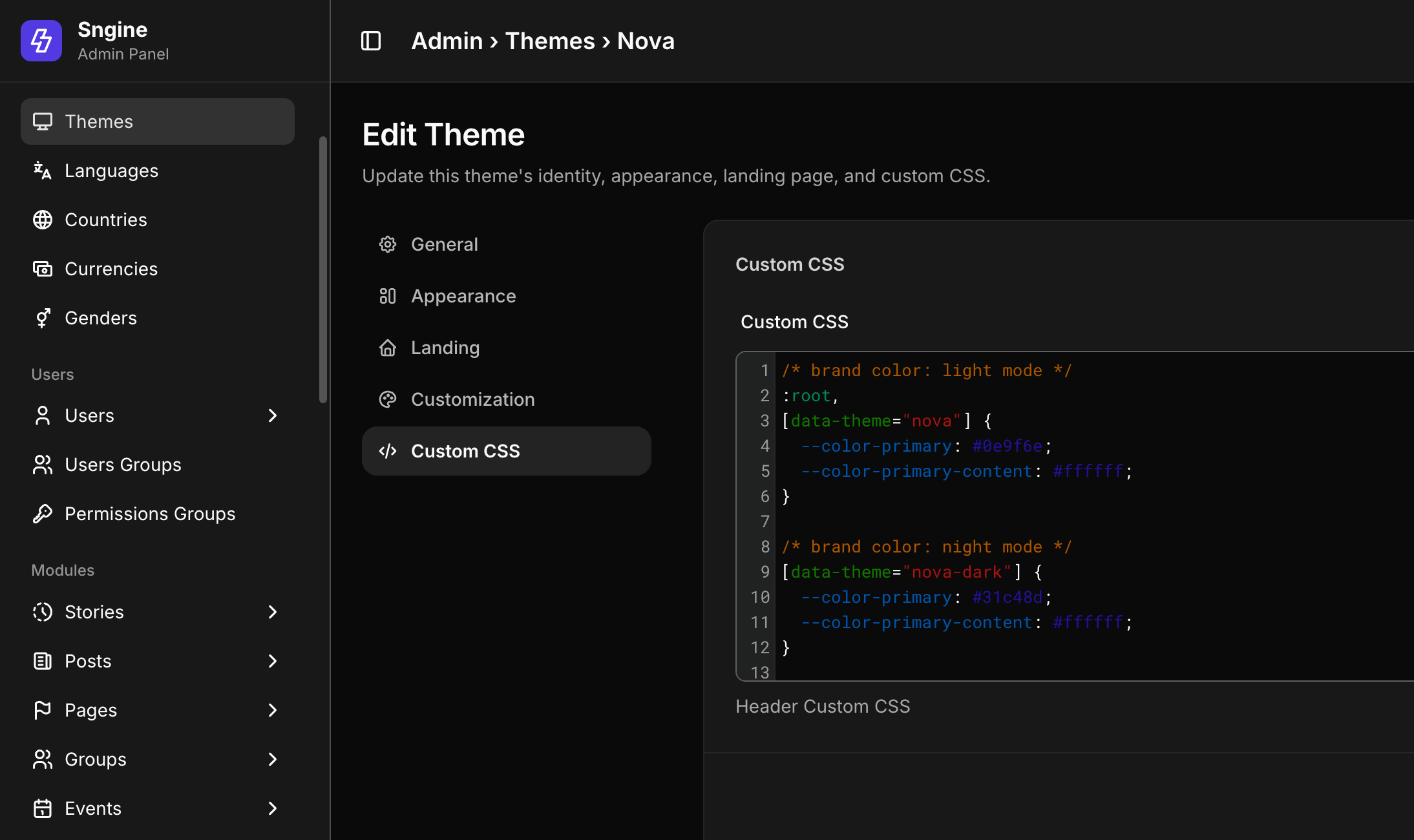
/* brand color: light mode */
:root,
[data-theme="nova"] {
  --color-primary: #0e9f6e;
  --color-primary-content: #ffffff;
}

/* brand color: night mode */
[data-theme="nova-dark"] {
  --color-primary: #31c48d;
  --color-primary-content: #ffffff;
}

/* HeroUI buttons: light mode */
.heroui {
  --accent: #0e9f6e;
  --accent-foreground: #ffffff;
}

/* HeroUI buttons: night mode */
[data-theme="nova-dark"] .heroui {
  --accent: #31c48d;
  --accent-foreground: #ffffff;
}

/* wallet and market cards keep the original color in night mode */
[data-theme="nova-dark"] [class*="--color-primary:#523ae2"] {
  --color-primary: #31c48d;
}
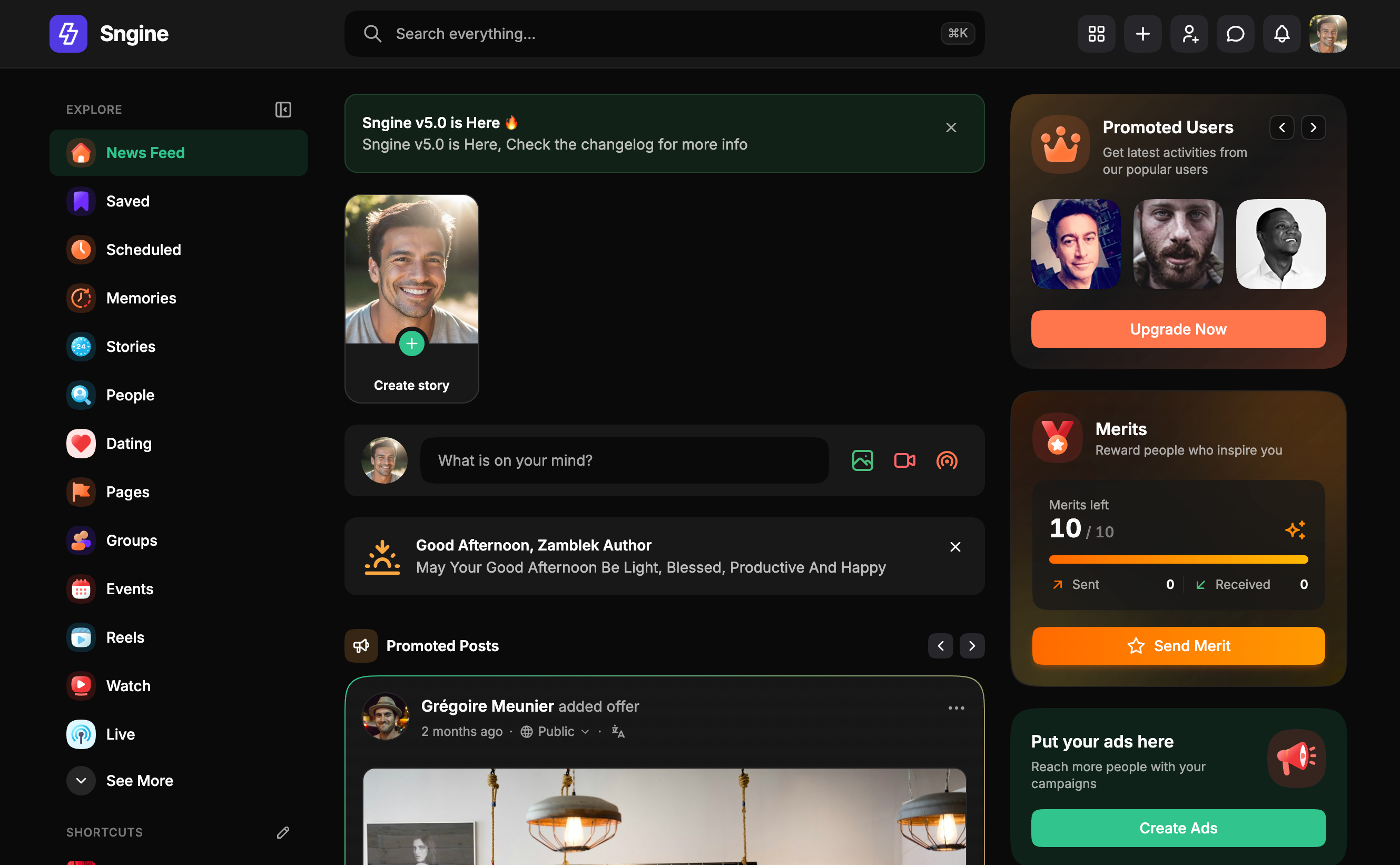
That is the complete change. Hover colors, light "soft" backgrounds, borders and focus rings are mixed from these variables automatically, so you do not need to set them one by one.
Optional: other theme colors
Add any of these lines inside the same blocks to change more of the palette. Values shown are Nova's defaults.
:root,
[data-theme="nova"] {
  --color-secondary: #a0d7e7;
  --color-accent: #ff754c;       /* orange highlights */
  --color-info: #3f8cff;
  --color-success: #4fbf67;
  --color-warning: #ffce73;
  --color-error: #ff5c5c;
  --color-base-100: #ffffff;     /* cards */
  --color-base-200: #f5f5f5;     /* page background */
  --color-base-300: #ececf3;     /* borders */
  --color-base-content: #11142d; /* text */
}
For night mode, put the lines you change inside the [data-theme="nova-dark"] block instead.
Do not combine with "Button Primary" or "Link Color"
If you use this snippet, leave Button Primary and Link Color on the Customization tab empty. Those pickers force one fixed color with !important, so buttons and links would no longer switch to your night mode shade.
Method 3: Rebuild the theme from the development files
Use this if you want the new colors baked into the theme's CSS files, or if you also change templates and want new Tailwind classes to work. It needs Node.js on your computer, and an update replaces your built files, so you must repeat the build after every Sngine update.
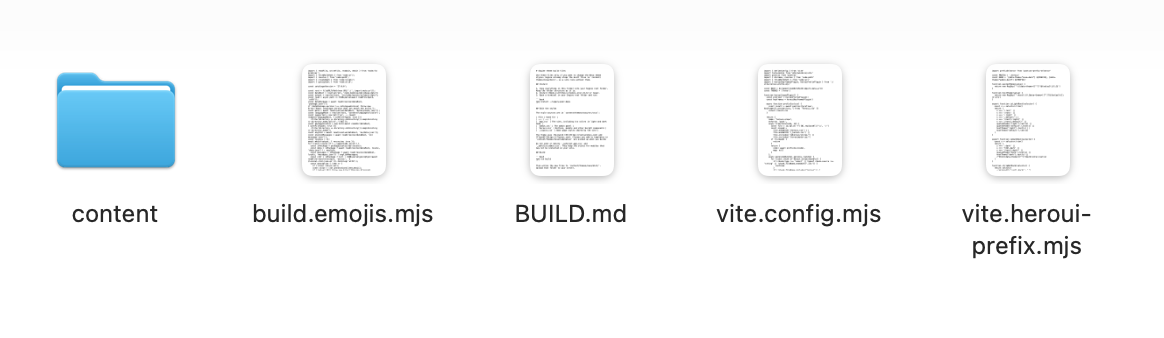
Sngine v5 ships the source styles separately in the Development folder of your download, with a BUILD.md guide inside it.
Step 1: Set up the build tools (once)
Copy everything inside
development_files/into your Sngine root folder, keeping the folder structure.Install Node.js 22.12 or newer.
Open a terminal in your Sngine root folder and run:
npm install --legacy-peer-depsStep 2: Change the colors at the source
Open content/themes/nova/src/css/app.css. Find the two theme blocks and change --color-primary in each:
@plugin "flyonui/theme" {
  name: "nova";
  ...
  --color-primary: #0e9f6e;          /* was #523ae2 */
  --color-primary-content: #ffffff;
  ...
}

@plugin "flyonui/theme" {
  name: "nova-dark";
  ...
  --color-primary: #31c48d;          /* was #7c69f2 */
  --color-primary-content: #ffffff;
  ...
}
Then open content/themes/nova/src/css/_heroui.css and change the HeroUI button color:
.heroui {
  --accent: #0e9f6e;                 /* was #523ae2 */
  --accent-foreground: #ffffff;
}

[data-theme="nova-dark"] .heroui {
  --accent: #31c48d;                 /* was #7c69f2 */
}
Leave the [data-theme="admin"] and [data-theme="admin-dark"] blocks as they are; they belong to the admin panel.
For the night-mode wallet and market cards, open content/themes/nova/templates/wallet.tpl and market.tpl and change dark:[--color-primary:#523ae2] to your night mode color.
Step 3: Build and upload
npm run buildThis writes new files to content/themes/nova/dist/. Upload the whole dist folder to your server, replacing the old one. It contains a hidden .vite folder with manifest.json; Sngine reads that file to find the CSS, so make sure your FTP client shows and uploads hidden files. If manifest.json is missing, the site loads without styles.
The built file names change on every build, so browsers always get the new CSS without clearing their cache.
Optional: live preview while you edit
Add this line to
includes/config.phpon your local copy:
define('VITE_DEV_SERVER', 'http://localhost:5173');Run
npm run dev. Your local site now updates as you save the CSS.When you are done, remove the line from
includes/config.phpand runnpm run build. Never leave this line on a live server.
After a Sngine update
The update replaces content/themes/nova/dist/ and the source files. Get the new development_files, apply your color changes again to the new app.css and _heroui.css, run npm run build and upload dist again. Do not copy your old app.css over the new one; it may be missing styles for new features.
To skip this step after every update, use Method 2 instead.
Method 4: A separate theme folder (not recommended for colors)
In older versions, the usual advice was to copy the default theme into a new folder and edit it. In v5 we do not recommend this just to change colors:
A copied theme does not receive template fixes and new features from future updates; you would have to merge them by hand.
Some parts of the build are tied to Nova, for example the emoji picker bundle, so a copy needs extra build changes to work fully.
The theme name is part of the color setup (
data-theme="nova"andnova-dark), so every theme block and selector must be renamed.
Method 2 gives the same visual result, keeps every update, and takes two minutes. Use a separate theme only if you plan a full custom design and are ready to maintain it yourself.
Changing one specific place
The Method 2 snippet already covers almost every colored spot. Use this table when a customer asks about one particular place.
Where | What controls it | How to change it |
|---|---|---|
Story "+" (Create story) button on the home page |
| Method 2 |
Mobile bottom bar: "+" create button and the active item |
| Method 2 |
Post, Save, Follow and modal buttons |
| Method 2 |
Links, switches, checkboxes, badges, active tabs |
| Method 2 |
Top bar (header) background | Header Color | Method 1 |
Page background | Background Color, or | Method 1 or 2 |
Wallet balance card and market banner in night mode | Fixed | The last rule of the Method 2 snippet |
Logo and favicon | Uploaded images | AdminCP → Design → Logos |
Text-story background gradients | A fixed decorative palette | Not tied to the brand color; changing it means editing theme files |
Chat bubble color choices | Colors each user picks for a conversation | Not tied to the brand color |
Emails sent by the site | Fixed | Edit that file; re-apply after each update. Custom CSS does not reach emails |
Admin panel | Its own neutral black and white theme | Not affected by any of these methods |
Recolor only one area
To give one area a different color from the rest of the site, set the variable on that area instead of on the whole page. Paste into the same Custom CSS box:
/* only the story "+" buttons */
.js_story-create {
  --color-primary: #ff3b6b;
}

/* only the mobile bottom bar */
.js_site-bottom-bar {
  --color-primary: #ff3b6b;
}

/* only the top bar (header) buttons */
.site-topbar .heroui,
.site-topbar.heroui {
  --accent: #ff3b6b;
}
This works even on parts styled with !important, because you change the color they read, not the rule itself.
Find what controls any element
Right-click the element on your site and choose Inspect.
Look at its
classlist.bg-primary,text-primary,border-primaryorbtn-primarymean--color-primary.button--primarymeans--accent.Pick a class or parent that is unique to that area (like
js_story-createabove) and set the variable on it in Custom CSS.
Keeping your colors after updates
Anything saved in the AdminCP survives an update; anything edited in theme files does not.
Change | Where it is stored | After an Sngine update |
|---|---|---|
Customization tab colors (Method 1) | Database | Kept |
Custom CSS snippet (Method 2) | Database | Kept |
Logos, favicon, wallpaper | Uploads folder + database | Kept |
Rebuilt | Theme files | Replaced, rebuild needed |
Edited | Theme files | Replaced, re-apply needed |
Edits to the built CSS in | Theme files | Replaced; never edit these files |
The colors are saved per theme. If you add more themes later, set the Custom CSS for each one.
Troubleshooting
Nothing changed after saving.
Check that Enable Customization is on in the Customization tab. While it is off, the Custom CSS box is ignored too.
Hard-refresh the page (Ctrl+F5, or Cmd+Shift+R on Mac).
If you use Cloudflare or another CDN with HTML caching, purge its cache.
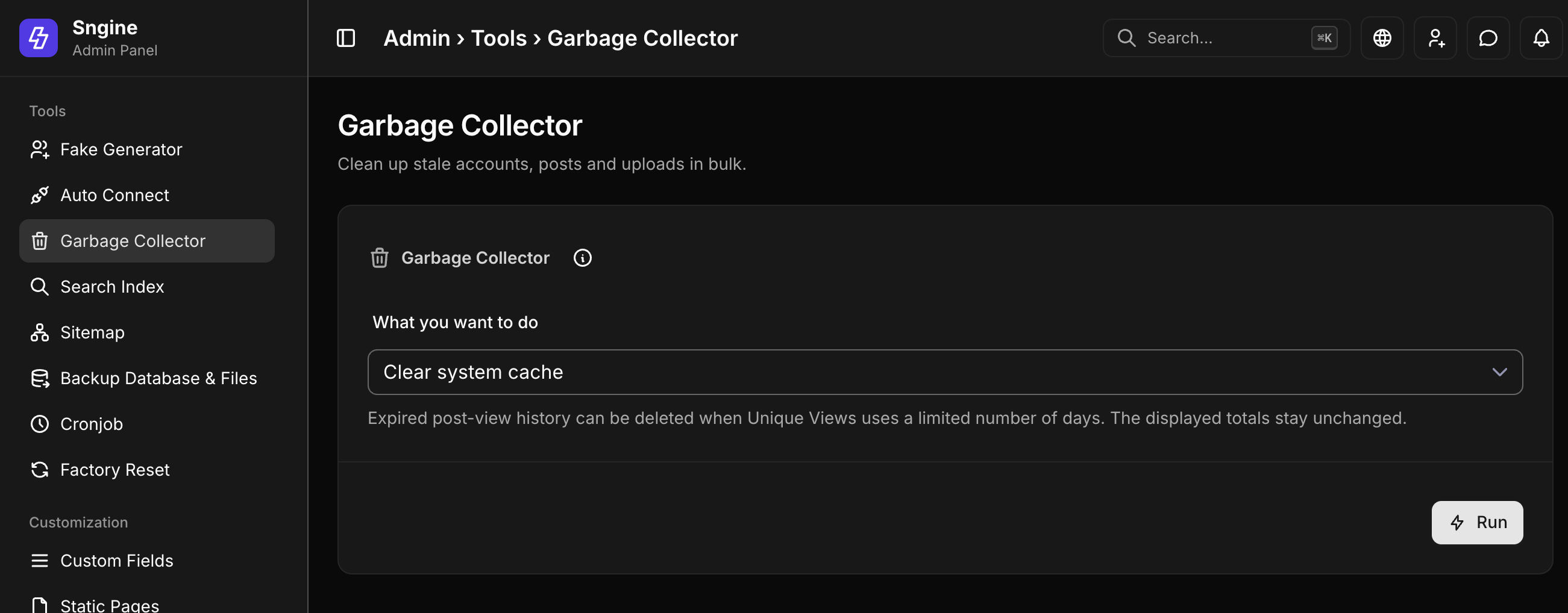
Go to AdminCP → Tools → Clear system cache.
Buttons changed but links, switches or the story "+" did not. You set only Button Primary in Method 1. Use the Method 2 snippet for the full brand color.
Light mode is right, night mode still shows purple. The [data-theme="nova-dark"] blocks of the snippet are missing, or Button Primary / Link Color are still filled in and force one color in both modes. Empty those two fields.
Text on buttons is hard to read. Your brand color is light. Set --color-primary-content and --accent-foreground to a dark color such as #11142d.
Only some buttons changed. The snippet is missing the .heroui blocks. Nova uses two button kits; FlyonUI reads --color-primary, HeroUI reads --accent.
After a rebuild (Method 3), the site has no styles. The hidden dist/.vite/manifest.json file was not uploaded. Upload the whole dist folder again, with hidden files shown in your FTP client.
After a rebuild, some classes I added in templates do not work. Run npm run build again after editing templates, and upload dist. Tailwind only includes classes it finds in the files at build time.
FAQ
I want to change the main color (5e72e4) in the bottom bar and the stories create button. How? Both read Nova's brand color, which is #523ae2 in v5 (#5e72e4 was the older default). Paste the Method 2 snippet into AdminCP → Design → Themes → Nova → Edit & Customize → Custom CSS, with Enable Customization on. The bottom bar, the story "+" button and every other brand-colored part change together.
How do I change the indigo color that dominates the script to my brand color? Use Method 2. It swaps the brand color on the whole site, in light and night mode, with one paste and no build tools.
How do I do it so updates don't affect it? What should I enter in the admin panel instead of editing files? Enter it in the admin panel, not in files: the Method 2 snippet in the theme's Custom CSS tab. It is stored in your database, so updates never replace it. The color pickers on the Customization tab (Method 1) are also update-safe, but they only change buttons, links, the header, the background and icons.
What are the other ways to change colors? Four: the color pickers (Method 1), the Custom CSS variables (Method 2), rebuilding the theme from development_files (Method 3), or a separate theme folder (Method 4, not recommended). See the table at the top.
Can I just edit the CSS file in content/themes/nova/dist/assets/? No. It is a minified, generated file with a changing name, and every update replaces it. Use Method 2, or change the source and rebuild with Method 3.
Do I need Node.js or npm for Method 1 or 2? No. Only Method 3 needs them.
Will my snippet still work after I update Sngine? Yes. It is stored in your database, and updates do not change it.
Does this change the admin panel colors? No. The AdminCP uses its own neutral theme and does not load the site's Custom CSS.
Can users still switch between day and night mode? Yes. The snippet sets a color for each mode, and the switch keeps working as before.